Twitter Analytics Dashboard Guide: Track & Visualize Your X Performance in 2026
What is a Twitter Analytics Dashboard?
A Twitter analytics dashboard is a centralized interface that aggregates, visualizes, and tracks your Twitter/X account performance metrics in real-time or near-real-time. Instead of manually pulling data from multiple sources or scrolling through spreadsheets, a dashboard presents your key performance indicators (KPIs) in an easy-to-understand visual format—think charts, graphs, and tables—all in one place.
Effective Twitter dashboards help you:
- Monitor performance at a glance - See critical metrics instantly without digging through reports
- Identify trends and patterns - Spot what's working and what's not over time
- Make data-driven decisions - Base your Twitter strategy on actual performance data
- Save time - Automate reporting instead of manual data compilation
- Communicate results - Share clear, visual reports with stakeholders or clients
- Track campaign performance - Measure specific hashtags, mentions, or time periods
Whether you're a solo entrepreneur tracking your personal brand, a social media platform manager running multiple accounts, or an agency reporting to clients, a well-designed analytics dashboard is essential for understanding your Twitter performance.
Native Twitter Analytics Dashboard
Twitter provides a free, built-in analytics dashboard at analytics.twitter.com that's available to all users. While it has limitations compared to third-party tools, it's a solid starting point and sufficient for many users.
How to Access Twitter Analytics
- Log into your Twitter account on desktop
- Click "More" in the left sidebar
- Select "Analytics" (or visit analytics.twitter.com directly)
Note: Twitter Analytics is only accessible via desktop browser, not mobile apps. You must have a Twitter account for at least 14 days before analytics become available.
Overview Dashboard
The main dashboard shows a 28-day summary including:
- Tweet Impressions - Total times your tweets were seen
- Profile Visits - How many times your profile was viewed
- Mentions - Times you were mentioned by others
- Followers - Your current follower count and 28-day change
- Top Tweet - Your best-performing tweet by impressions
This high-level view is useful for quick health checks but lacks depth for serious analysis.
Tweet Activity Dashboard
The most valuable section, showing detailed metrics for each individual tweet:
- Impressions - How many times the tweet was seen
- Engagements - Total interactions (likes, retweets, replies, clicks)
- Engagement Rate - Engagements divided by impressions
- Likes, Retweets, Replies - Individual counts for each interaction type
- Link Clicks - Clicks on URLs in your tweets
- Profile Clicks - Clicks to your profile from the tweet
- Hashtag/Detail Clicks - Clicks on hashtags or "view tweet details"
You can export this data as CSV for custom analysis—extremely valuable for building your own dashboards.
Audiences Tab
Understand who follows you:
- Demographics - Gender breakdown, top countries, languages
- Interests - What your followers care about (lifestyle, entertainment, tech, etc.)
- Activity - When your audience is online (crucial for scheduling tweets)
Limitations of Native Twitter Analytics
While free and useful, Twitter's native dashboard has significant limitations:
- 28-day data window - Can't easily view long-term trends
- No historical comparisons - Difficult to compare month-over-month or year-over-year
- Limited customization - Can't choose which metrics to display
- No competitor analysis - Can't benchmark against other accounts
- No hashtag tracking - Can't track specific campaign hashtags across all users
- Basic visualizations - Simple graphs without advanced filtering
- No alerts - Won't notify you of unusual activity or milestones
- Single account only - Can't manage multiple Twitter accounts in one view
For more comprehensive analytics, you'll need third-party tools.
Essential Twitter Metrics to Track
A good Twitter analytics dashboard should track these critical metrics:
Engagement Metrics
Engagement Rate:
- Formula: (Likes + Retweets + Replies + Clicks) ÷ Impressions × 100
- The single most important metric for content performance
- Industry benchmark: 1-3% is typical, 5%+ is excellent
- Track overall and per-tweet rates
Individual Engagement Types:
- Likes - Basic approval, easiest engagement
- Retweets - Amplification signal, higher value than likes
- Replies - Conversation starter, highest value engagement
- Quote Tweets - Commentary and discussion, very high value
Learn more about tracking and improving engagement in our Twitter engagement analysis guide.
Reach Metrics
Impressions: Total times your content was displayed, whether clicked or not
Reach: Number of unique users who saw your tweets (not always available)
Potential Reach: Combined follower count of everyone who retweeted you
Audience Growth Metrics
Follower Count: Total followers (track daily/weekly changes)
Follower Growth Rate: Net new followers ÷ total followers × 100
Unfollows: Followers lost (requires third-party tools)
Follower Quality: Ratio of real, engaged followers vs. bots or inactive accounts
For detailed follower tracking strategies, see our guide on tracking Twitter follower growth.
Content Performance Metrics
Tweet Frequency: How often you post
Best Performing Content Types: Which formats get most engagement (text, images, videos, polls, threads)
Top Tweets: Your highest-performing content by impressions or engagement
Worst Tweets: What flopped and why
Link & Conversion Metrics
Link Clicks: Clicks on URLs you share
Click-Through Rate (CTR): Link clicks ÷ impressions × 100
Conversions: Actions taken after clicking (requires UTM tracking or integration with Google Analytics)
Traffic Value: Estimated value of traffic driven to your website
Sentiment & Brand Health
Sentiment Score: Ratio of positive to negative mentions
Brand Mentions: Times your brand is mentioned (with or without @handle)
Share of Voice: Your mentions vs. competitor mentions
Tracking sentiment requires specialized tools—learn more in our sentiment analysis guide.
Campaign-Specific Metrics
Hashtag Performance: Reach, impressions, and engagement for specific hashtags
Campaign Reach: Total unique users exposed to campaign content
Campaign ROI: Value generated vs. campaign cost
For detailed hashtag tracking, see our hashtag analytics guide.
Best Twitter Analytics Dashboard Tools
While native Twitter Analytics is free, these third-party tools offer significantly more powerful dashboards:
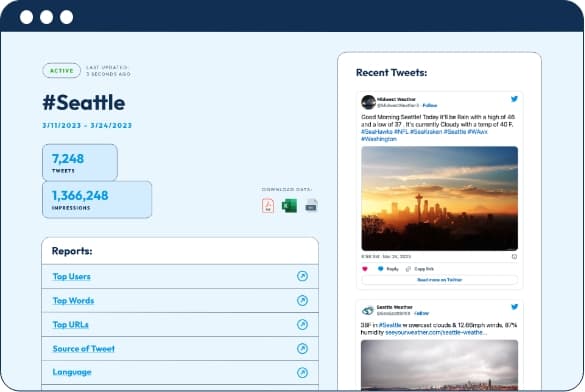
1. Tweet Archivist (Best for Historical Data & Hashtag Tracking)
Pricing: Plans from $49/month, 14-day free trial
Key Dashboard Features:
- Archive unlimited historical tweets (past Twitter's 7-day API limit)
- Track specific hashtags, keywords, or @mentions across ALL Twitter
- Customizable date ranges (days, weeks, months, years)
- Export data to Excel, CSV, or PDF reports
- Sentiment analysis on archived tweets
- Real-time and historical tracking combined
- No tweet volume limits
Best for: Brands tracking campaigns, events, or hashtags over extended periods; researchers needing historical Twitter data
Start your Tweet Archivist free trial
2. Sprout Social (Best All-in-One Enterprise Dashboard)
Pricing: From $249/month
Key Dashboard Features:
- Unified inbox for all social accounts (not just Twitter)
- Customizable report builder with drag-and-drop widgets
- Competitive benchmarking against other accounts
- Team performance tracking (which team members engage most)
- Automated scheduled reports (daily, weekly, monthly)
- Advanced sentiment analysis
- Integration with CRM and other business tools
Best for: Large teams and enterprises managing multiple social accounts with complex reporting needs
3. Hootsuite Analytics (Best for Multi-Account Management)
Pricing: From $99/month
Key Dashboard Features:
- Manage up to 50 Twitter accounts in one dashboard
- Custom report templates
- Competitor analysis across up to 20 accounts
- Team member performance metrics
- ROI tracking and attribution
- Scheduled automated reports
Best for: Agencies and social media managers handling multiple client accounts
4. Keyhole (Best for Real-Time Event & Hashtag Tracking)
Pricing: From $79/month
Key Dashboard Features:
- Real-time hashtag and keyword tracking dashboards
- Live event monitoring with auto-updating metrics
- Influencer identification (who's driving your hashtag)
- Geographic tracking (where mentions are happening)
- Historical hashtag data (past campaigns)
- Shareable public dashboards for event displays
Best for: Event marketers, PR teams, and brands running real-time campaigns
5. Brand24 (Best for Mentions & Reputation Monitoring)
Pricing: From $79/month
Key Dashboard Features:
- Real-time mention monitoring across Twitter and web
- Sentiment analysis dashboard
- Influence score for people mentioning you
- Discussion volume charts and trends
- Alerts for unusual activity or negative sentiment spikes
- Comparison charts (your brand vs. competitors)
Best for: Reputation management and social listening across platforms
6. Socialbakers (Now Emplifi) (Best for Competitive Intelligence)
Pricing: Custom enterprise pricing
Key Dashboard Features:
- Advanced competitive benchmarking
- Industry-specific performance comparisons
- AI-powered insights and recommendations
- Content performance predictions
- Unified analytics across all social platforms
Best for: Enterprise brands focused on competitive positioning
7. Buffer Analyze (Best for Small Teams & Startups)
Pricing: From $50/month
Key Dashboard Features:
- Clean, simple dashboard interface
- Customizable date ranges and comparisons
- Automatic best-time-to-post recommendations
- Content performance breakdown by type
- Basic competitor tracking (one competitor per account)
- White-label reporting for client presentations
Best for: Small businesses and solo marketers wanting simplicity without sacrificing insights
For a comprehensive comparison of social media tools including dashboard capabilities, check our Twitter listening tools comparison.
Creating Your Custom Twitter Dashboard
Sometimes pre-built dashboards don't meet your specific needs. Creating a custom dashboard gives you complete control over what you track and how you visualize it.
Option 1: Google Data Studio (Looker Studio) - Free
Steps to create:
- Export Twitter data - Download CSV from analytics.twitter.com or use third-party API access
- Upload to Google Sheets - Import your CSV data
- Connect to Looker Studio - Visit datastudio.google.com and create new report
- Add data source - Connect your Google Sheet
- Build visualizations - Drag and drop charts, scorecards, and tables
- Customize design - Add your branding, colors, and layout
- Set auto-refresh - Schedule data updates (requires Supermetrics or similar connector for automation)
Pros: Completely free, highly customizable, integrates with other Google tools
Cons: Manual data updates unless you pay for API connectors, requires some technical skill
Option 2: Microsoft Power BI
Similar to Google Data Studio but with more advanced features:
- More powerful data transformations
- Better for large datasets
- Enterprise-grade security
- Native Twitter connector (with Power BI Pro)
Pricing: Free for basic, $10/user/month for Pro
Option 3: Tableau
Industry-leading data visualization platform:
- Most sophisticated visualizations
- Best for very large datasets
- Steeper learning curve
- Can connect to Twitter API via third-party connectors
Pricing: From $70/user/month
Option 4: Custom-Built Dashboard with APIs
For developers, build entirely custom dashboards:
- Twitter API v2 - Free tier for basic metrics, paid tiers for advanced access
- Data storage - PostgreSQL, MongoDB, or other database
- Visualization framework - Chart.js, D3.js, Plotly, or dashboard frameworks like Dash or Streamlit
- Backend - Python (Flask/Django), Node.js, or Ruby on Rails
Pros: Total control, can integrate with other internal systems
Cons: Requires significant development time and ongoing maintenance
Key Metrics to Include in Your Custom Dashboard
Structure your custom dashboard with these sections:
1. Overview Section (Top of Dashboard):
- Total followers (current count + growth %)
- Total impressions (period selected)
- Total engagements (period selected)
- Overall engagement rate
- Top tweet of the period
2. Engagement Trends Section:
- Line graph: Daily/weekly engagement rate over time
- Line graph: Impressions trend
- Bar chart: Engagement by tweet type (text, image, video, poll)
3. Content Performance Section:
- Table: Top 10 tweets by engagement
- Table: Bottom 10 tweets (to learn what doesn't work)
- Pie chart: Engagement breakdown (likes vs. retweets vs. replies vs. clicks)
4. Audience Section:
- Follower growth line graph
- Follower demographics (if available from API)
- Active hours heatmap (when your audience is online)
5. Campaign/Hashtag Section (if applicable):
- Hashtag reach and impressions
- Top contributors to your hashtag
- Sentiment analysis of hashtag mentions
Analytics Dashboard Best Practices
Follow these principles to create effective, actionable analytics dashboards:
1. Focus on Actionable Metrics
Don't just track vanity metrics (follower count, total likes). Focus on metrics that inform decisions:
- Engagement rate over raw likes (indicates content quality)
- Link CTR over impressions (shows actual interest)
- Follower growth rate over total followers (shows trajectory)
- Conversion rate over total clicks (shows business impact)
2. Design for Your Audience
Different stakeholders need different dashboards:
For Executives: High-level KPIs, trends, and ROI—minimal detail
For Marketing Managers: Campaign performance, competitive benchmarks, content insights
For Social Media Specialists: Granular tweet-level data, optimal posting times, content type performance
For Clients (Agencies): Progress toward goals, easy-to-understand visualizations, white-labeled branding
3. Use the Right Visualizations
Match chart types to data types:
- Line graphs - Trends over time (follower growth, daily engagement)
- Bar charts - Comparisons (this week vs. last week, tweet types)
- Pie charts - Proportions (engagement breakdown, sentiment distribution) - use sparingly
- Scorecards - Single important numbers (total followers, engagement rate)
- Tables - Detailed lists (top tweets, recent mentions)
- Heatmaps - Patterns (posting time performance, day-of-week activity)
4. Include Context and Comparisons
Numbers without context are meaningless:
- Show period-over-period change percentages (e.g., "↑ 15% vs. last month")
- Include industry benchmarks where available
- Display goals or targets alongside current performance
- Use color coding: green for positive trends, red for negative, yellow for neutral
5. Keep It Simple
Resist the urge to cram every possible metric into one dashboard:
- Limit to 6-10 key visualizations per dashboard view
- Use white space—don't make it cluttered
- Create multiple dashboard views for different purposes rather than one massive dashboard
- Prioritize the most important metrics at the top
6. Make It Interactive
Allow users to explore data:
- Add date range selectors
- Include filters (by tweet type, campaign, etc.)
- Enable drill-down (click a bar to see details)
- Provide export options for deeper analysis
7. Automate Updates
Manual dashboards quickly become outdated:
- Connect live data sources when possible
- Schedule automatic refreshes (hourly, daily, weekly)
- Set up alerts for significant changes or anomalies
- Archive historical snapshots for trend analysis
8. Test and Iterate
Your first dashboard won't be perfect:
- Gather feedback from dashboard users
- Track which metrics people actually look at
- Remove unused visualizations
- Add new metrics as needs evolve
- Revisit dashboard design quarterly
For comprehensive Twitter performance tracking strategies, see our Twitter analytics best practices guide.
How to Interpret Your Dashboard Data
A dashboard is only valuable if you know how to interpret what you're seeing. Here's how to extract insights:
Identifying Trends
Look for patterns over time:
- Upward trends - What caused the increase? New content strategy? Campaign launch? Viral tweet?
- Downward trends - What changed? Less frequent posting? Content quality drop? Audience shift?
- Cyclical patterns - Does engagement spike on certain days or times? Seasonal trends?
- Anomalies - Unusual spikes or dips? Investigate the cause (viral tweet, controversy, algorithm change)
Benchmarking Performance
Compare against:
- Your own history - Are you improving month-over-month?
- Industry standards - How do you stack up against typical engagement rates in your industry?
- Competitors - Are you gaining or losing ground vs. similar accounts?
- Your goals - Are you on track to hit quarterly or annual targets?
Correlation Analysis
Look for relationships between metrics:
- Does posting frequency correlate with engagement rate? (Sometimes more posts = lower engagement per post)
- Do video tweets consistently outperform image tweets?
- Does posting at certain times drive more link clicks?
- Do certain hashtags boost or hurt engagement?
Segment Your Data
Break down aggregate metrics:
- By content type - Which formats (text, image, video, thread, poll) perform best?
- By topic - Which subjects get most engagement from your audience?
- By campaign - How did specific marketing campaigns perform?
- By time - When does your content perform best?
Ask the Right Questions
Use your dashboard to answer strategic questions:
- "What content drives the most conversions?" (Look at click-through and conversion data)
- "When should we post to maximize reach?" (Check impressions by posting time)
- "Are we growing our audience effectively?" (Review follower growth rate and engagement trends)
- "Which campaigns delivered best ROI?" (Compare campaign cost vs. conversions generated)
- "Is our engagement quality improving?" (Track replies and quote tweets vs. passive likes)
Common Dashboard Misinterpretations
Mistake: Focusing only on follower count
Reality: 10,000 engaged followers are worth far more than 100,000 inactive or bot followers. Always prioritize engagement rate and follower quality over raw numbers.
Mistake: Celebrating high impressions without checking engagement
Reality: Impressions measure exposure, not interest. If impressions are high but engagement is low, your content isn't resonating.
Mistake: Comparing absolute numbers without context
Reality: "5,000 retweets" sounds great, but if you have 1M followers, that's only 0.5% engagement—actually quite poor.
Mistake: Ignoring negative trends
Reality: Declining engagement or follower loss are red flags. Don't rationalize them away—investigate and address the root cause.
Advanced Dashboard Features & Use Cases
Take your Twitter analytics to the next level with these advanced techniques:
Predictive Analytics
Some advanced tools (Sprout Social, Socialbakers) use AI to predict:
- Which content will perform best before you post it
- Optimal posting times based on historical patterns
- Follower growth projections
- Campaign performance forecasts
Competitive Intelligence Dashboards
Track your competitors alongside your own metrics:
- Compare follower growth rates
- Benchmark engagement rates
- Analyze their content strategy (what they post, when, and how it performs)
- Identify content gaps you can fill
- Track share of voice in your industry
Sentiment Analysis Dashboards
Monitor how people feel about your brand:
- Positive vs. negative mention ratios
- Sentiment trends over time (improving or worsening?)
- Crisis detection (sudden negative sentiment spikes)
- Topic-specific sentiment (product A loved, product B criticized)
Influencer & Advocate Tracking
Identify and track key voices:
- Who are your most influential followers?
- Which users amplify your content most?
- Who are the key influencers in your industry?
- Track influencer campaign performance
Customer Service Dashboards
For brands using Twitter for support:
- Average response time to customer tweets
- Volume of support requests over time
- Customer satisfaction scores (based on sentiment)
- Top issues being reported
- Agent performance metrics (if multiple team members respond)
ROI & Attribution Dashboards
Connect Twitter to business outcomes:
- Track UTM parameters to attribute conversions to specific tweets
- Calculate cost per acquisition (CPA) for Twitter-driven customers
- Monitor revenue generated from Twitter traffic
- Compare Twitter ROI vs. other marketing channels
Integration with Google Analytics or other analytics platforms is essential for full attribution.
Multi-Platform Social Dashboards
Combine Twitter with other social channels:
- Unified metrics across Twitter, Facebook, Instagram, LinkedIn, TikTok
- Cross-platform campaign tracking
- Comparative performance (which platform drives best ROI?)
- Consolidated social media reports for executives
Real-Time Event Dashboards
For live events, conferences, or product launches:
- Live-updating mention counts and sentiment
- Trending topics related to your event
- Top contributors and influencers
- Geographic distribution of mentions (where is buzz happening?)
- Display on screens at physical events to show social engagement
Start Building Your Twitter Analytics Dashboard Today
Whether you use Twitter's native analytics, invest in a comprehensive third-party platform, or build a custom solution, having a well-designed analytics dashboard transforms raw data into actionable insights. The key is focusing on metrics that matter to YOUR goals, presenting data clearly, and using insights to continuously improve your Twitter strategy.
Start simple—pick 5-10 key metrics aligned with your objectives—then expand and refine your dashboard as your needs evolve.
Ready to take your Twitter analytics to the next level? Try Tweet Archivist free for 14 days to create powerful custom dashboards, track unlimited historical data, and analyze your Twitter performance like never before.